發表文章

目前顯示的是有「iis」標籤的文章

sslforfree 免費憑證 For IIS 使用

https://www.sslforfree.com/ 在免費SSL平台申請SSL  會拿到三個檔案如下: ca_bundle.crt certificate.crt private.key 但這不適用於windows派的 IIS伺服器 所以必須透過轉成pfx供 IIS使用 首先先安裝openssl 並執行以下代碼: openssl pkcs12 -export -out certificate.pfx -inkey private.key -in certificate.crt -certfile ca_bundle.crt 期間會需要輸入pfx使用之密碼 請牢記,全在匯入IIS時key 入
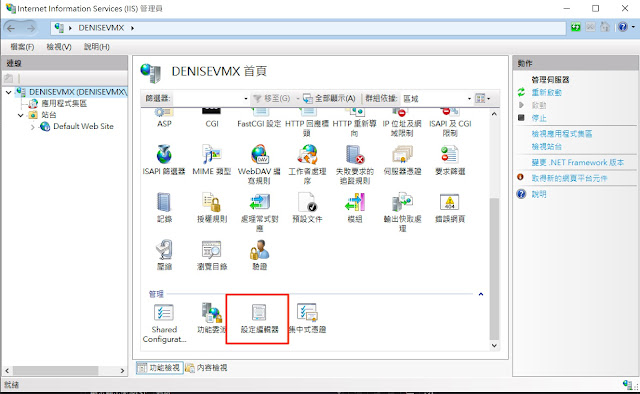
[IIS] IIS7.5、IIS8、IIS8.5 修改IIS預設上傳、下載檔案大小限制和時間限制

圖片
開啟網站的設定編輯器

[IIS] http 強制轉成https 方法

開啟網站應用程式根目錄下的  web.config  設定檔,並且找到  < system.webServer >  區段,加入以下設定即可完成: <system.webServer> <rewrite> <rules> <rule name="HTTP to HTTPS redirect" stopProcessing="true"> <match url="(.*)" /> <conditions> <add input="{HTTPS}" pattern="off" ignoreCase="true" /> </conditions> <action type="Redirect" redirectType="Found" url="https://{HTTP_HOST}/{R:1}" /> </rule> </rules> </rewrite> </system.webServer> IIS7 以上請安裝 URL Rewrite https://www.iis.net/downloads/microsoft/url-rewrite

[IIS]沒有 C:\Windows\Microsoft.NET\Framework64\v4.0.30319\Temporary ASP.NET File 的寫入權限

圖片
錯誤: C:\Windows\Microsoft.NET\Framework64\v4.0.30319\Temporary ASP.NET File 的寫入權限 此狀況通常發生於重灌或是更新.net Framework 解決方案如下: 請先到C:\Windows\Microsoft.NET\Framework64\v4.0.30319\Temporary ASP.NET File目錄 並給予畫面上顯示該帳號的寫入權限 如果沒有Temporary ASP.NET File 資料夾,請手動建立一個 並寫給予寫入權限即可

Where is the IIS Express configuration / metabase file

 IIS Express 要設定 configuration / metabase file  等等,需設定config 檔案通常放置於此(可能會依電腦不用有異)  My Documents > IIS Express > config usually (not always) one of these paths will work  %userprofile%\documents\iisexpress\config\applicationhost.config %userprofile%\my documents\iisexpress\config\applicationhost.config

iis 允許其他mime type ( .atlas .woff .woff2)

圖片
step1:開啟IIS 開啟MIEI類型 step2:使用右上方的新增 step3:將以下資訊填入 Extension: .atlas MIME type:text/atlas svg as "image/svg+xml" ttf as "application/x-font-ttf" or "application/x-font-truetype" otf as "application/x-font-opentype" woff as "application/font-woff" woff2 as "application/font-woff2" (proposed by W3C) eot as "application/vnd.ms-fontobject" sfnt as "application/font-sfnt" (existing in IANA, as of 2013-03-29) apk as "application/vnd.android.package-archive"

[IIS] [ASP]IIS7.0上傳檔限制的解決方法

IIS7.0的修改方法 打開IIS → 「ASP」→ 打開「限制內容」; 修改「要求實體的上限」的值,預設值為200000(約200KB) 把它修改為你想修改的大小,如:52000000(50MB) 修改完成點擊「套用」 iis7 上傳大檔限制的真正解決辦法 打開「IIS」; 按兩下「Default Web Site「→按兩下中間窗格中的「要求篩選」→按一下右側窗格的「編輯功能設置」→修改「請求限制」下面的「允許的最大內容長度」,預設是30M,隨便改大一點,我改成300M,點擊「確定」; 重新開機IIS,再上傳試試,50M、90M都可以了。 IIS6.0的修改方法 在IIS中右鍵「本地電腦」選擇「屬性」,鉤選「允許直接編輯設定資料庫」; 在服務裡關閉「IIS Admin Service」服務; 找到c:\windows\system32\inetsrv\下的「MetaBase.xml」,打開,找到「AspMaxRequestEntityAllowed 」把他修改為需要的值,預設為204800,即200k ,把它修改為51200000(50MB); 然後重啟「IIS Admin Service"服務。 在 IIS 6.0 中,無法下載超過4M的附件時,可以按以下步驟解決 : 先在服務裡關閉 iis admin service 服務。 找到 windows\system32\inetsrv\ 下的 metabase.xml 檔。 用純文字方式打開,找到 AspBufferingLimit 把它修改為需要的值,預設為4194304(可修改為20M即:20480000)。 存檔,然後重啟 iis 服務。

iis 允許 .json mime type .json

圖片
step1:開啟IIS 開啟MIEI類型 step2:使用右上方的新增 step3:將以下資訊填入 Extension: .json MIME type: application/json

Asp iis 上傳限制設定

開啟 IIS 主控台 在「網際網路服務」下選擇欲修改的主機,然後在上面按右鍵,選「內容」 將「啟用直接 Metabase 編輯」打勾,按確定 編輯 %windir%\system32\inetsrv\MetaBase.XML 尋找 AspMaxRequestEntityAllowed 的設定 預設為 AspMaxRequestEntityAllowed = “ 204800 ” (200K) 修改為新的上傳限制即可